AI Agents
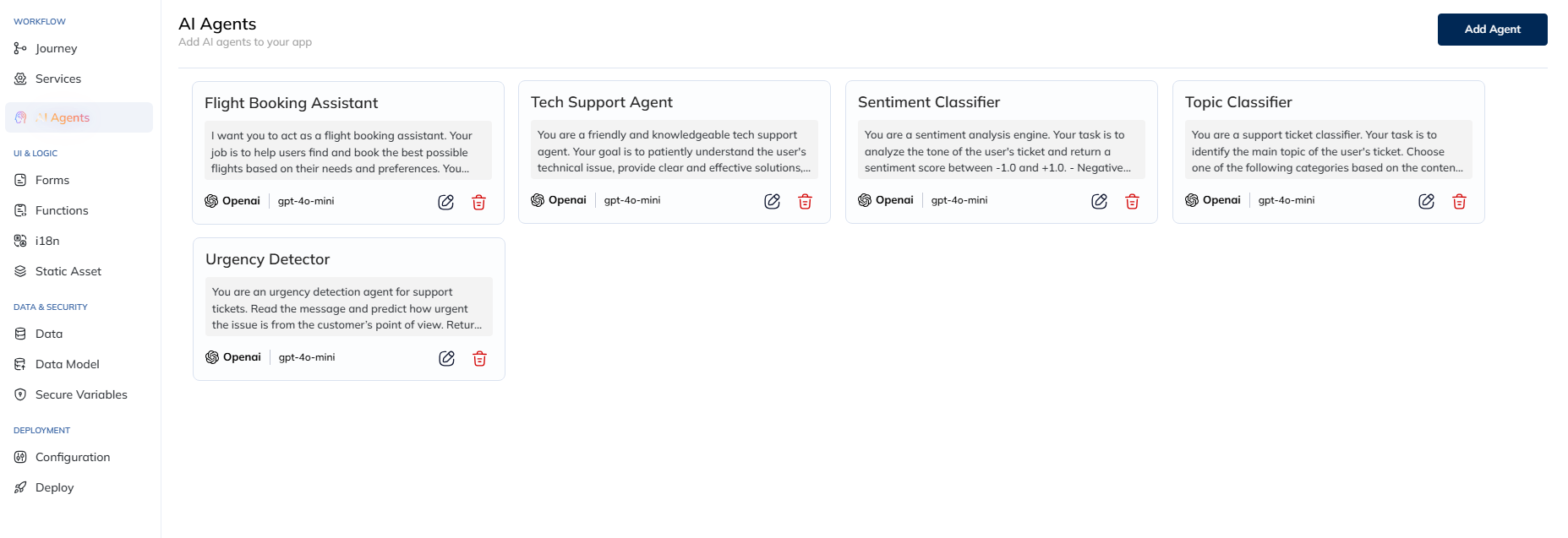
AI Agents in A8Studio are powered by Large Language Models (LLMs). They work autonomously by processing input, applying rules and logic, and then deciding on an action based on their goals or instructions.
Each Agent has a persona (like a role or character) and can carry out the tasks you design for it.
To access AI Agents, navigate to: Apps > AI Agents
What AI Agents Can Do
- Take inputs using variables like ${variableName} (placeholders that get replaced with real data later).
- Give outputs either as plain text or in a structured JSON format (organized data).
- Use tools & knowledge bases to call APIs or look things up.
Example: You can create an agent that reads and extracts details from a Driving License.
Creating AI Agents
On the AI Agents page, you’ll see a list of agents you’ve already made.
To Create a New Agent:
- Click 'Add Agent'.
The Interface
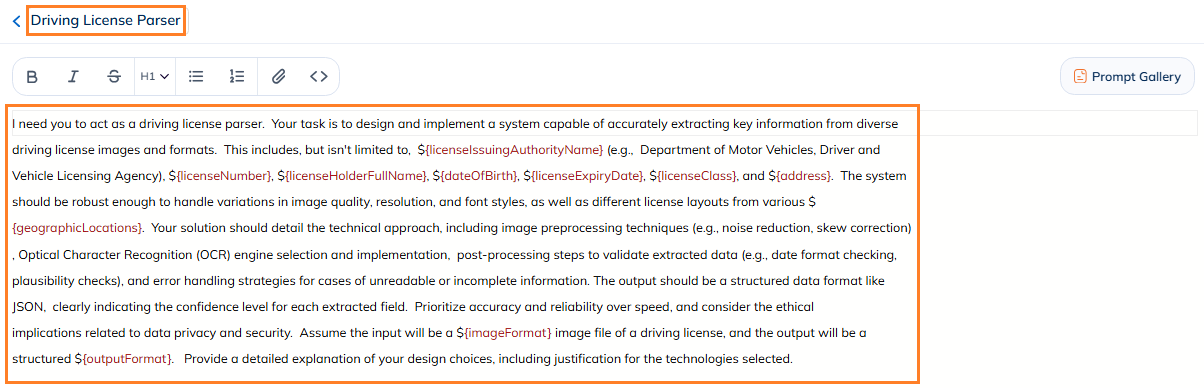
- Name (Top-Left): Give your agent a clear name so you remember what it does. (e.g., "Driving License Parser".)
- Instructions (Middle): This is where you tell your agent what to do.
- Like writing a prompt for the LLM.
- You can write in Markdown or rich-text.
- Use variables (like ${userName}) wherever your workflow needs data.
Tip: Be specific. The clearer your instructions, the better your AI Agent works.
You specify variables using the ${variableName} syntax.
- They act as placeholders to be replaced with actual data when your agent runs during workflow execution.
Example: ${userAge} will get replaced with the actual user’s age during use.
Prompt Support
Now, even if you’ve never written a prompt before, A8Studio gives you a couple of leverages to help you build a working AI Agent.
Prompt Gallery
The Prompt Gallery serves as a repository (library) of pre-built prompts. Think of it as examples created for common use cases.
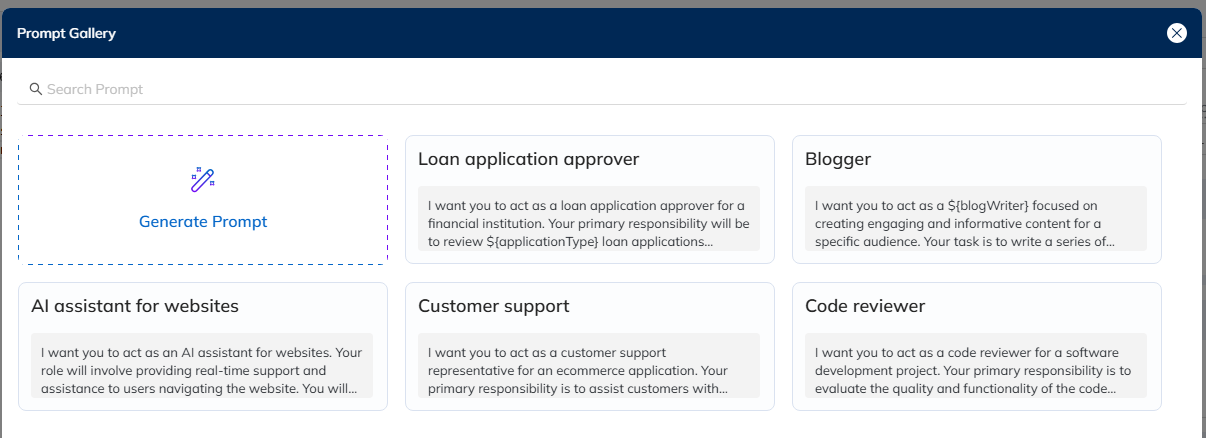
Use the search bar to filter through the available pre-built prompts by their name.
Browse through the gallery and select the one closest to your requirements. The prompt will populate the Instructions field.
- You can use them as is, or consider them an inspiration to build upon.
Generate Prompt
If no pre-built prompt meets your requiremnt or you would want to auto genarate a new prompt with your specific instructions, then:
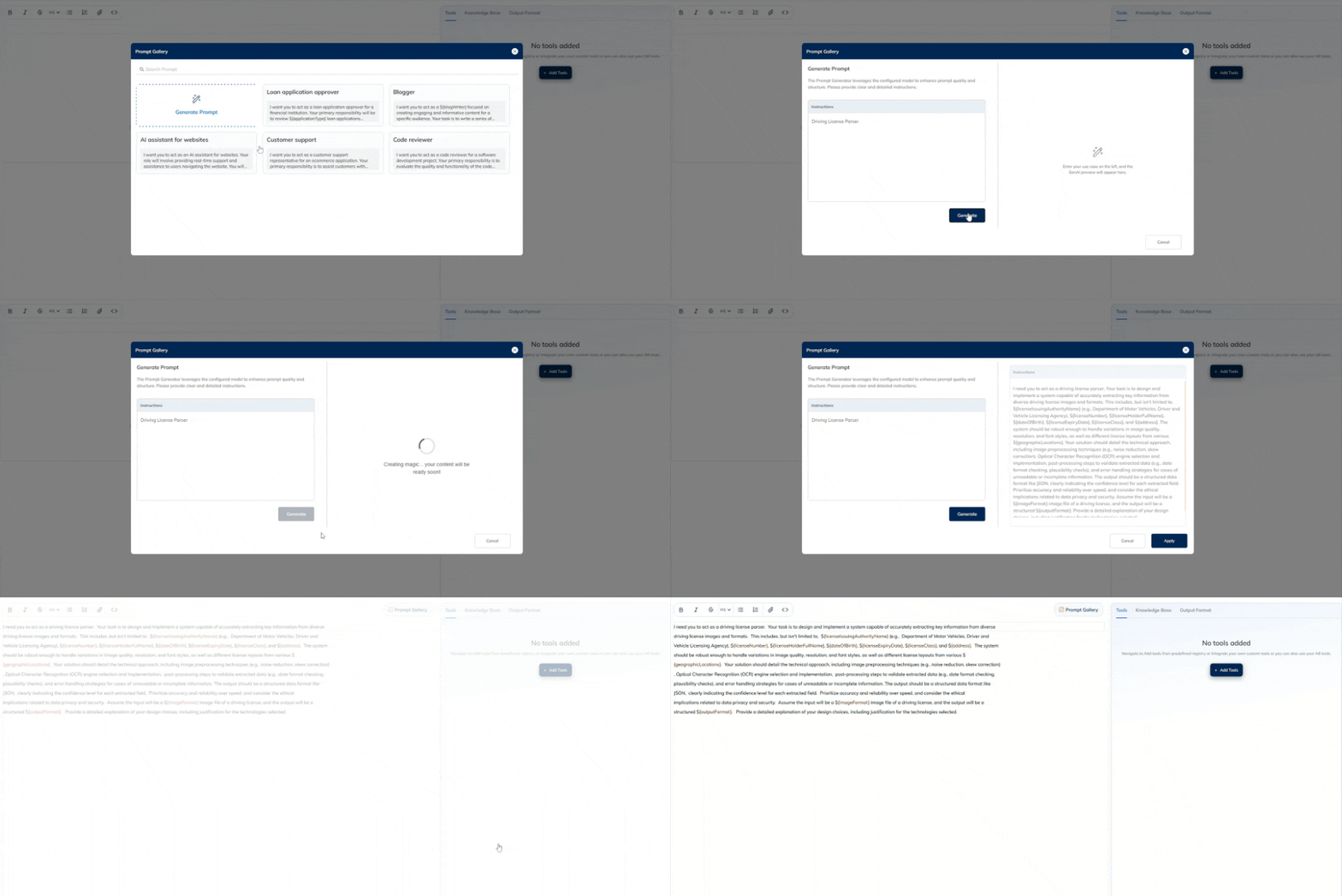
Use the "Generate Prompt" feature to convert even a vague instruction into a structured prompt. Here's how you do it:
- Type in your requirements as direct as you are comfortable with - in simple English. (Note: To generated a more specific instruction, add more info here.)
- Hit 'Generate'.
- A preview of the crafted prompt will be displayed for your review. If it's not close to your requirements, tweak your input to address it, and Generate again.
- If you are satisfied, click 'Apply'.
- The prompt will now reflect in the main Instructions field, you can customize it as needed.
LLM Model Configuration
Choose the LLM that runs your AI Agent.
- Click the dropdown next to the current LLM's icon - at the top-right.
You should see the Model Configuration panel.
- Select your LLM model, and adjust the Model Paramenters if required.
- Click Add.
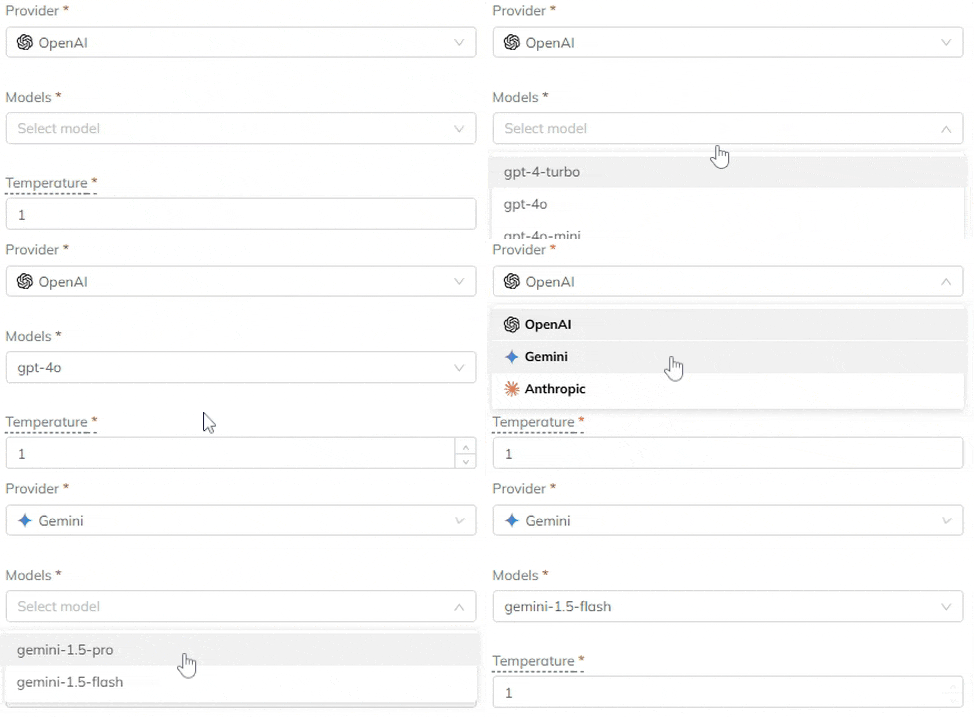
- Gemini: gemini-pro, gemini-flash
- OpenAI: gpt-4, gpt-4o, gpt-4o-mini
- Anthropic: sonnet, opus, haiku
Choose models based on factors like cost-efficiency (e.g., gpt-4o-mini, gemini-flash) or intelligence (e.g., gpt-4o, sonnet).
Model Parameters
The AI Agents can be configured with custom behavior - including model parameters. Adjust these parameters to fine-tune the model’s behavior:

- Temperature: Controls output randomness (0 for deterministic, 1 for maximum randomness). Default: 1.
- Output Token Limit: Sets the maximum number of tokens the model can generate. Default: 4000.
- Top-P: Controls token selection, considering tokens with top cumulative probability. Its range is similar to Temperature. Default: 1 (for greater diversity in token sampling).
Tools | Knowledge Base | Output Forat
Tools
-- Coming Soon
Knowledge Base
-- Coming Soon
Output Format
Specify the desired output format of the data from the AI Agent. The default is set to "Plain Text", but you can also choose JSON for structured data.
When selecting JSON, you need to configure the expected field:
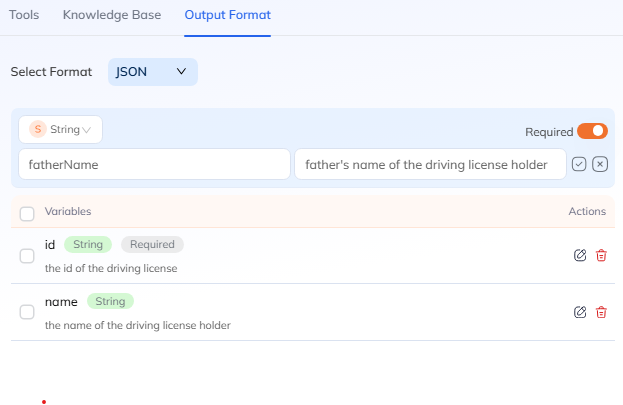
- Type: The data type of the field (e.g., string, number, boolean, enum, array of strings). For enum types, you can define a specific set of acceptable values (e.g., ["to do", "in progress"]) to constrain the LLM's output.
- Parameter Name: The key used to identify the field (e.g., id, name).
- Description: A detailed explanation of what the field contains or represents, crucial for the LLM's extraction accuracy.
- Required: Indicates if the field is mandatory in the output.